
Signal
Signal is a free, privacy-focused encrypted messaging app from the Signal Foundation. Signal Desktop 8.28.0 brings your chats to a Windows PC.
Windows
Open source

LINE for Windows is the desktop version of the LINE messenger and social networking service, used for chats and calls on a PC.
Average 0.0 · ratings: 0
Thank you! Your rating is saved; you can change it. Could not save the rating. Please try again later. Too many ratings from your network today. Please try again tomorrow. The average appears after 5 ratings.
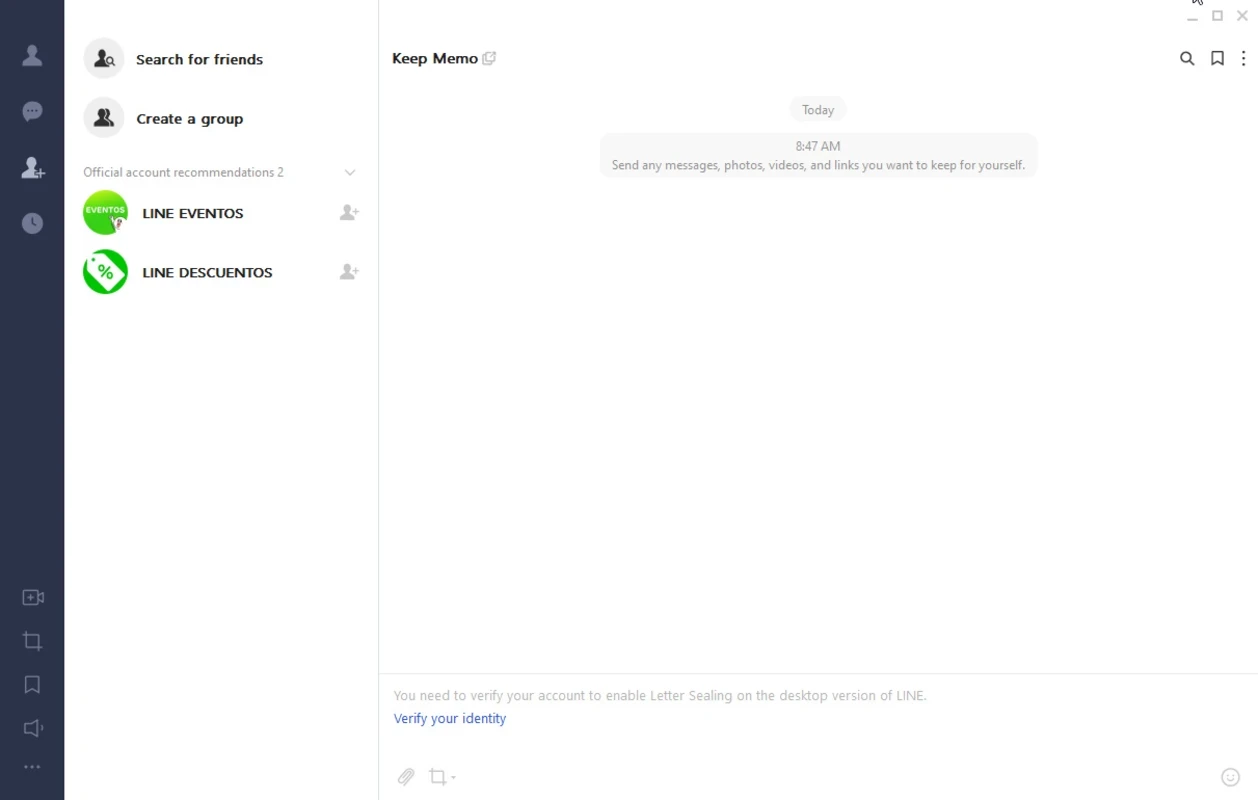
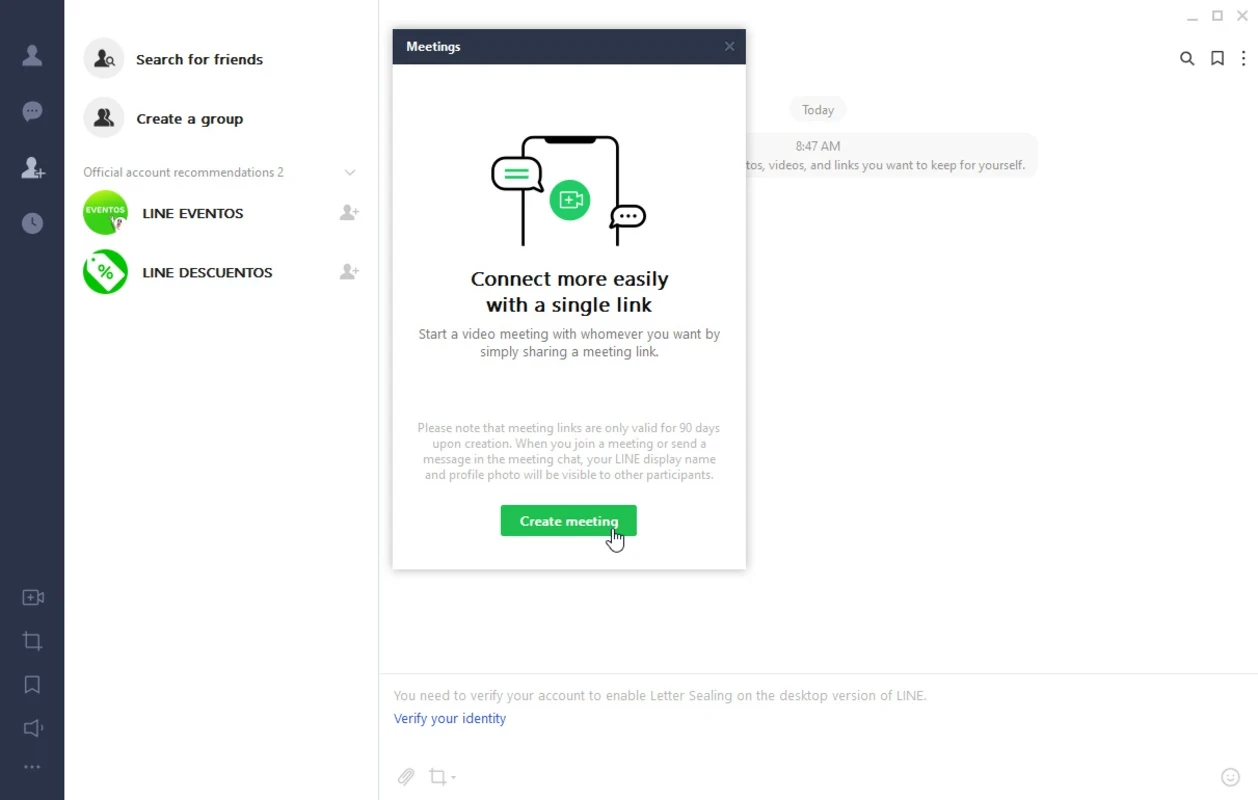
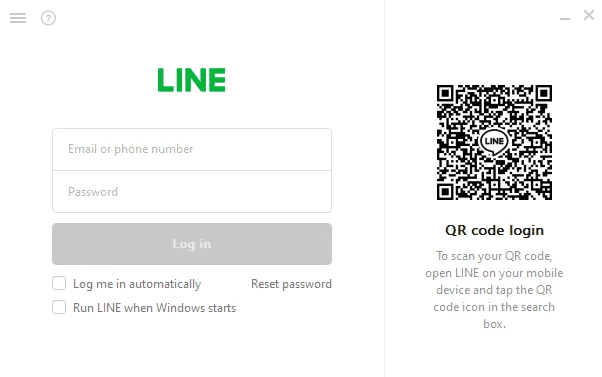
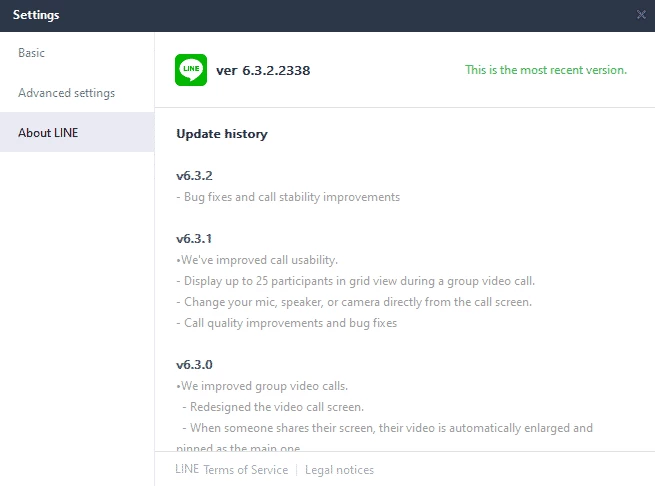
LINE for Windows is the desktop edition of LINE, an instant messaging and social networking service that has been around since June 23, 2011. You can download LINE for Windows free of charge through the official website line.me and keep chatting on a PC with the same account you use on your phone.
LINE started as a mobile messenger and grew into a service that combines instant messaging with social networking. Today it is developed by LY Corporation, and apps exist for iOS, Android, Windows, macOS, smartwatches and even as a Chrome extension. The desktop version is useful when you spend the day at a computer: typing on a real keyboard is faster, it is easier to send files from the PC, and you do not need to pick up the phone for every message. It works as a companion to the mobile app, so your account and friends list stay on the phone, and the PC shows the same conversations. For people who have family, friends or business contacts that rely on LINE, the Windows app makes it much easier to stay in touch during working hours.
According to the LINE Help Center:
Lock your PC when you step away, because anyone at the keyboard can read open chats. Log out on shared computers. Be careful with messages from unknown accounts asking for codes or money, and never share the verification codes LINE sends you. Install the desktop app only from line.me.
Decide early which notifications you want on the PC. If LINE is mainly for family chats, mute busy groups during working hours and keep direct messages visible. Pin the app to the taskbar so it is one click away, and set it to start with Windows only if you really use it every day. Files you receive are saved on the computer, so clean the download folder from time to time. If the app stops syncing, sign out and back in, and check that the phone app is updated.
LINE is free to download and use.
Other messengers for Windows in our listings: Telegram Desktop, WhatsApp Desktop, Viber, KakaoTalk, WeChat and Signal.
Signal is a free, privacy-focused encrypted messaging app from the Signal Foundation. Signal Desktop 8.28.0 brings your chats to a Windows PC.

WhatsApp Desktop is the official WhatsApp app for Windows, letting you chat and call from your PC with the account on your phone.

Microsoft Teams is Microsoft's collaboration and video-conferencing app for chat, meetings, calls and shared files at work, school or home.

Zoom Meeting is the desktop client of Zoom's video-conferencing service for calls, webinars, screen sharing and chat on Windows.

Camo Studio is Reincubate's desktop app that turns an iPhone, iPad or Android phone into a high-quality webcam for a Windows PC or Mac.

Google Meet is Google's video meeting app. On Windows it runs from the browser and can be installed as an app, with no separate installer to download.

Facebook for Windows is the desktop app of Meta's social network, with the news feed, groups, pages and notifications in a separate window.

Telegram Desktop is the official Windows client of the Telegram messenger, with chats, groups, channels and file sharing synced from the cloud.

Telegram Web is the browser version of the Telegram messenger: open it on a Windows PC, log in with your phone and chat without installing anything.